
Discord Web client is a browser-based application that you can use to talk and hang out with friends and communities right from your desktop. As someone who has worked extensively with Discord platforms, I can tell you that mastering these essential tips will transform your Discord Web experience from basic usage to power-user efficiency.
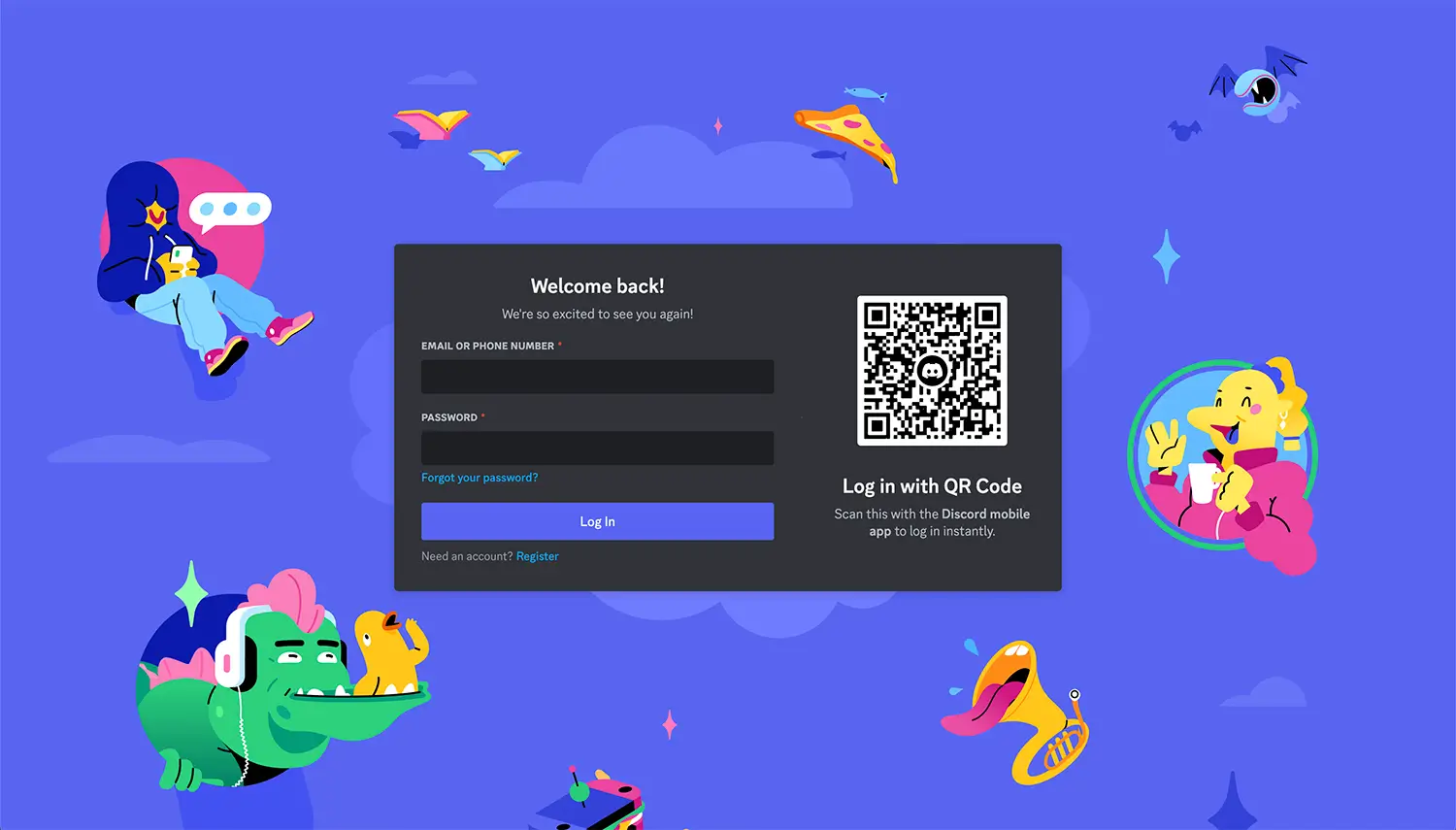
Tip #1: Master the Login Process for Maximum Convenience
Getting started with Discord Web efficiently sets the foundation for everything else. Here's how I recommend optimizing your login experience:
Quick Login Methods:- Direct URL access: Bookmark https://discord.com/login for instant access
- QR Code scanning: Use your Discord mobile app to scan the QR code for seamless login without typing
- Browser password management: Enable your browser's password manager to store credentials securely
The beauty of Discord Web lies in its immediate accessibility - no downloads, no installations, just instant access to your communities.
Tip #2: Leverage Browser-Specific Features for Better Performance
Not all browsers handle Discord Web equally. Through extensive testing, I've found specific optimizations for each major browser:
Google Chrome Users:- Enable hardware acceleration in Chrome settings for smoother voice/video performance
- Use Chrome's built-in task manager (Shift+Esc) to monitor Discord's resource usage
- Consider using Chrome profiles for different Discord accounts
- Enable WebRTC for optimal voice chat quality in about:config
- Use Firefox's container tabs to separate Discord sessions
- Adjust Firefox's memory limits for better performance with multiple servers
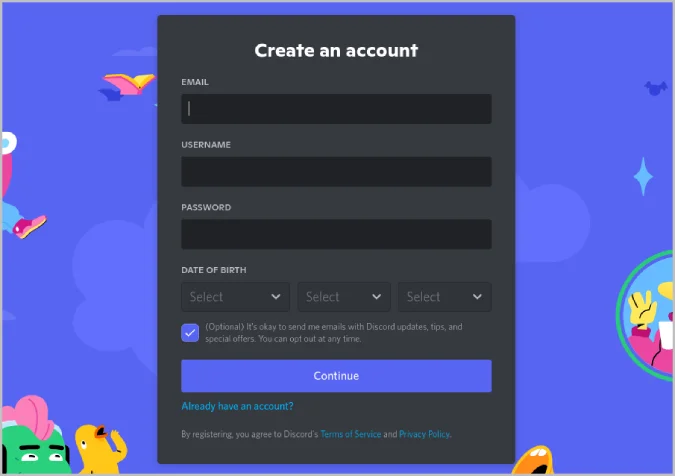
Tip #3: Optimize Server Discovery and Management
Discord's server ecosystem is vast, and knowing how to navigate it effectively saves tremendous time:
Smart Server Joining:- Use the "Explore Discoverable Servers" feature to find communities by interests
- Join servers strategically - free users get 100 servers, Nitro users get 200
- Organize servers using folders (right-click server icons to create folders)
- Right-click server icons for quick access to notification settings
- Use server templates when creating new communities
- Pin important servers at the top of your server list
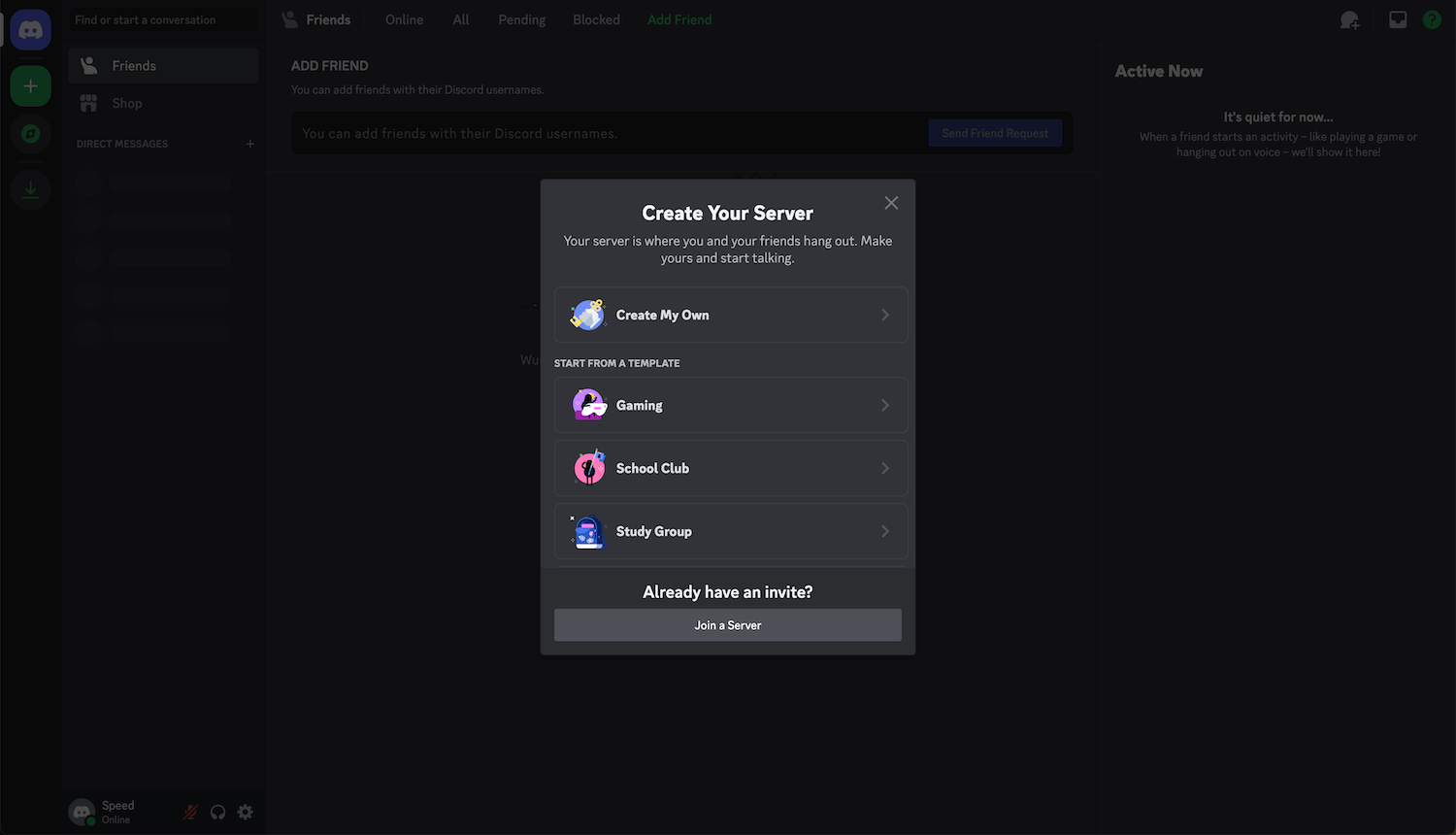
Tip #4: Master Voice and Video Chat Like a Pro
Voice channels are Discord's crown jewel. Here's how to use them effectively in the browser:
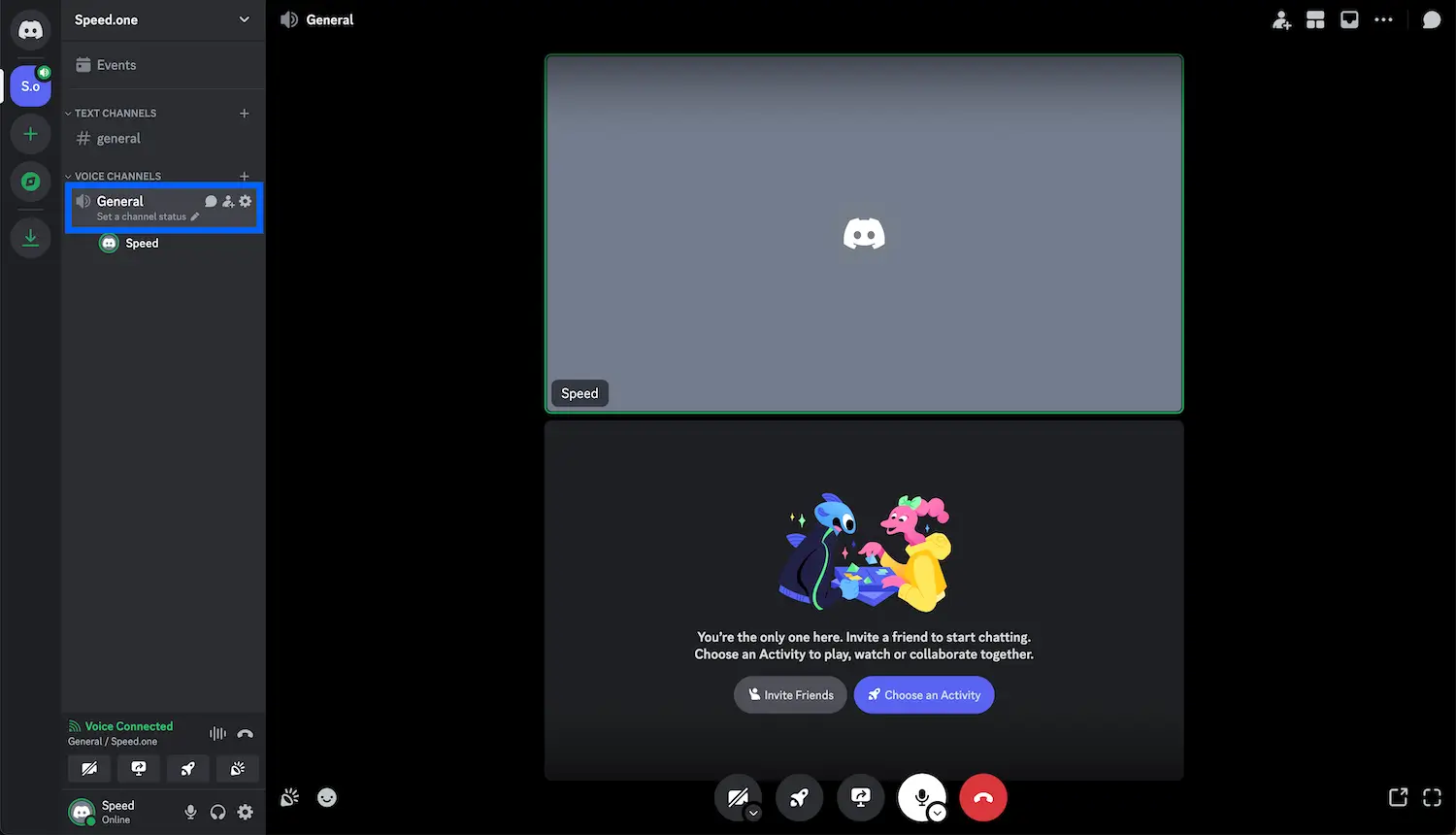 Voice Chat Optimization:
- Always grant microphone permissions on first use to avoid connection issues
- Use push-to-talk (set in User Settings) for noisy environments
- Test your microphone in User Settings > Voice & Video before joining important calls
- Share specific browser tabs instead of your entire screen for privacy
- Use virtual backgrounds if your browser supports them
- Enable "Show non-video participants" to see who's listening
Tip #5: Understand and Leverage Discord Nitro Benefits
Discord Nitro transforms the web experience significantly. Here's what matters most:
File Sharing Advantages:- Free users: 25 MB file limit
- Nitro Basic: 50 MB file limit
- Nitro: 500 MB file limit - perfect for sharing large design files or videos
- 4,000 character message limit (vs. 2,000 for free users)
- HD screen sharing capabilities
- Custom emoji usage across all servers
- Higher quality voice channels (up to 384kbps)
Tip #6: Use Keyboard Shortcuts to Navigate Like Lightning
Keyboard shortcuts separate casual users from power users. Master these essential combinations:
Navigation Shortcuts:- Ctrl/Cmd + K: Universal search - find servers, channels, users, or messages instantly
- Alt + Up/Down: Navigate between channels without clicking
- Ctrl/Cmd + Shift + A: Toggle mute status quickly during calls
- Ctrl/Cmd + Shift + D: Toggle deafen to block all audio
- Up Arrow: Edit your last message
- Ctrl/Cmd + Enter: Send message (when enabled in settings)
- Shift + Enter: Add new line without sending
Tip #7: Implement Smart Multi-Account Management
Discord Web excels at handling multiple accounts seamlessly:
Browser Profile Strategy:- Create separate Chrome/Firefox profiles for work vs. gaming Discord accounts
- Use different browsers entirely (Chrome for gaming, Firefox for work)
- Leverage incognito/private browsing for temporary account access
- Keep different accounts in different browser windows
- Use browser bookmarks with specific account login URLs
- Consider browser extensions that help manage multiple sessions
Tip #8: Optimize for Mobile and Tablet Usage
Discord Web works surprisingly well on mobile devices, often providing features unavailable in the mobile app:
Mobile Web Advantages:- Access to full server management features
- Better file sharing capabilities
- Full keyboard shortcuts when using external keyboards
- Multi-window support on tablets
- Enable Discord's "Compact Mode" for better mobile navigation
- Use browser zoom features for better text readability
- Pin Discord Web to your home screen for app-like access
Tip #9: Prioritize Security on Shared and Public Computers
When using Discord Web on shared devices, security becomes paramount:
Essential Security Practices:- Always use private/incognito browsing on public computers
- Enable two-factor authentication for additional account security
- Clear browser data completely after use on shared devices
- Manually log out from all sessions when finished
- Avoid browser extensions on public computers that might access Discord data
- Use Discord's authorized apps settings to monitor third-party access
- Check login activity regularly in User Settings > Privacy & Safety
- Consider using a VPN when accessing Discord on public networks
Tip #10: Troubleshoot Common Issues Before They Become Problems
Prevention and quick fixes save hours of frustration:
Performance Troubleshooting:- Clear browser cache regularly to prevent performance issues
- Disable unnecessary browser extensions that might interfere with Discord
- Update your browser to the latest version for best compatibility
- Monitor browser memory usage - restart if Discord tabs consume excessive RAM
- Check microphone/camera permissions in browser settings
- Refresh the Discord tab if voice chat becomes unstable
- Use Discord's connection test feature in Voice & Video settings
- Consider switching browsers if issues persist
- Test audio devices in browser settings before joining calls
- Grant persistent permissions for microphone and camera access
- Use headphones to prevent echo issues during calls
- Check Discord's server status page if widespread issues occur
Bonus Pro Tips: Advanced Discord Web Mastery
Here are some additional expert techniques I've discovered through years of Discord Web usage:
Performance Monitoring:- Use browser developer tools (F12) to monitor Discord's network usage during high-traffic events
- Enable Discord's "Reduced Motion" setting if you experience lag during busy server activities
- Bookmark discord.com/channels/[SERVER_ID]/[CHANNEL_ID] for instant access to specific channels
- Double-click any username to quickly mention them in chat
- Use Discord's search operators: "from:username", "in:channel", "has:image", "before:date"
- Create custom status messages that auto-clear after set time periods
Conclusion
These 10 essential tips transform Discord Web from a simple browser page into a powerful communication platform. By mastering login optimization, browser-specific features, server management, voice/video capabilities, Nitro benefits, keyboard shortcuts, multi-account handling, mobile usage, security practices, and troubleshooting techniques, you'll operate Discord Web at a professional level.
The beauty of Discord Web lies not just in its accessibility, but in its depth of functionality when you know how to unlock it. Whether you're a casual user looking to optimize your experience or a community manager needing maximum efficiency, these tips provide the foundation for Discord Web mastery.
---
Ready to explore amazing Discord communities? Check out our curated server directory to find your perfect digital home.