
Sometimes you want to use Discord without broadcasting every game you open. Maybe you are testing a new game, maybe you want more privacy, or maybe you simply do not want your status to update every time Discord detects an app running on your computer.
The good news is that Discord gives you several ways to control this. You can hide your game activity for everyone, limit who sees it in certain servers, and reduce how much information connected accounts share.
This guide explains how to hide what game you are playing on Discord and what to check if your activity still shows up.
What Discord Shows as Game Activity
Discord can display the game or app you are currently using as a status. This is often shown under your profile or in member lists so friends and server members can see what you are playing.
In many cases, this is helpful. It makes it easier for friends to join you, start a conversation, or know when you are active in a game. But if you prefer a lower-profile setup, you can turn it off.
How to Hide Your Game Activity for Everyone
The fastest way to hide your game activity is to disable Activity Status.
- Open the Discord desktop app.
- Click the gear icon next to your username.
- Open Activity Privacy.
- Turn off Display current activity as a status message.
Once this setting is turned off, Discord should stop showing your current game as your status.
How to Hide Activity in Specific Servers
Discord also lets you control whether your activity is visible in individual servers.
If you want friends to see your activity but do not want it shown in a certain community, check your server-specific privacy settings. This is useful for large public servers where you would rather keep a lower profile.
The exact labels may change over time, but the general idea is the same: Discord separates global activity sharing from some server-level visibility controls.
How to Stop Activity from Connected Accounts
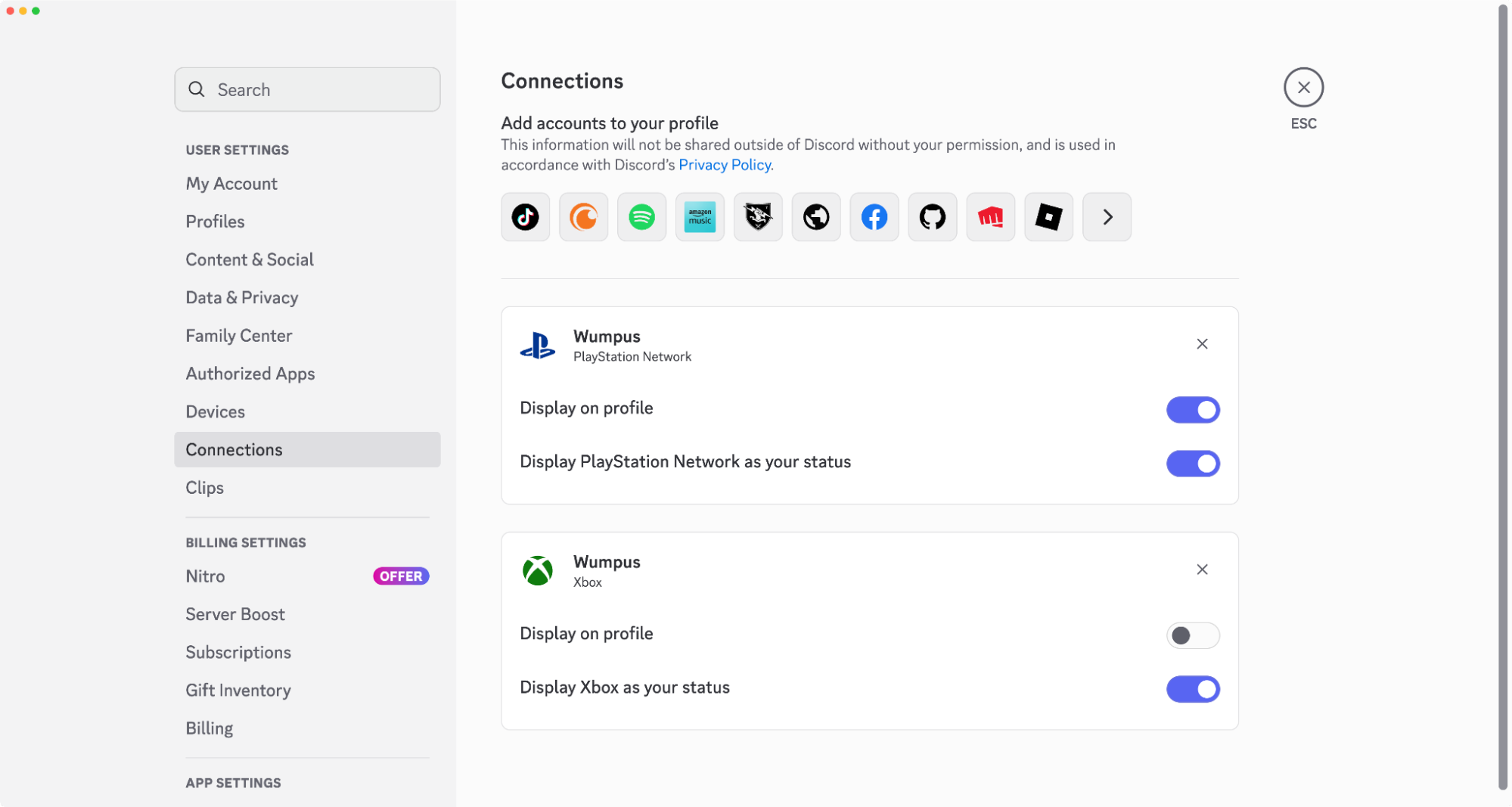
Some status information can also come from connected services such as Spotify, Xbox, or other linked platforms.
If you want to reduce what Discord shares:
- Open User Settings.
- Go to Connections.
- Review linked accounts.
- Turn off any visibility settings you do not want.
- Disconnect accounts you no longer use.
This will not replace the main Activity Status setting, but it does help reduce extra status signals.
Can You Hide One Specific Game?
Discord does not always treat this as a simple one-click hide-this-one-game feature. In practice, users usually solve it in one of two ways:
- turn off activity status completely
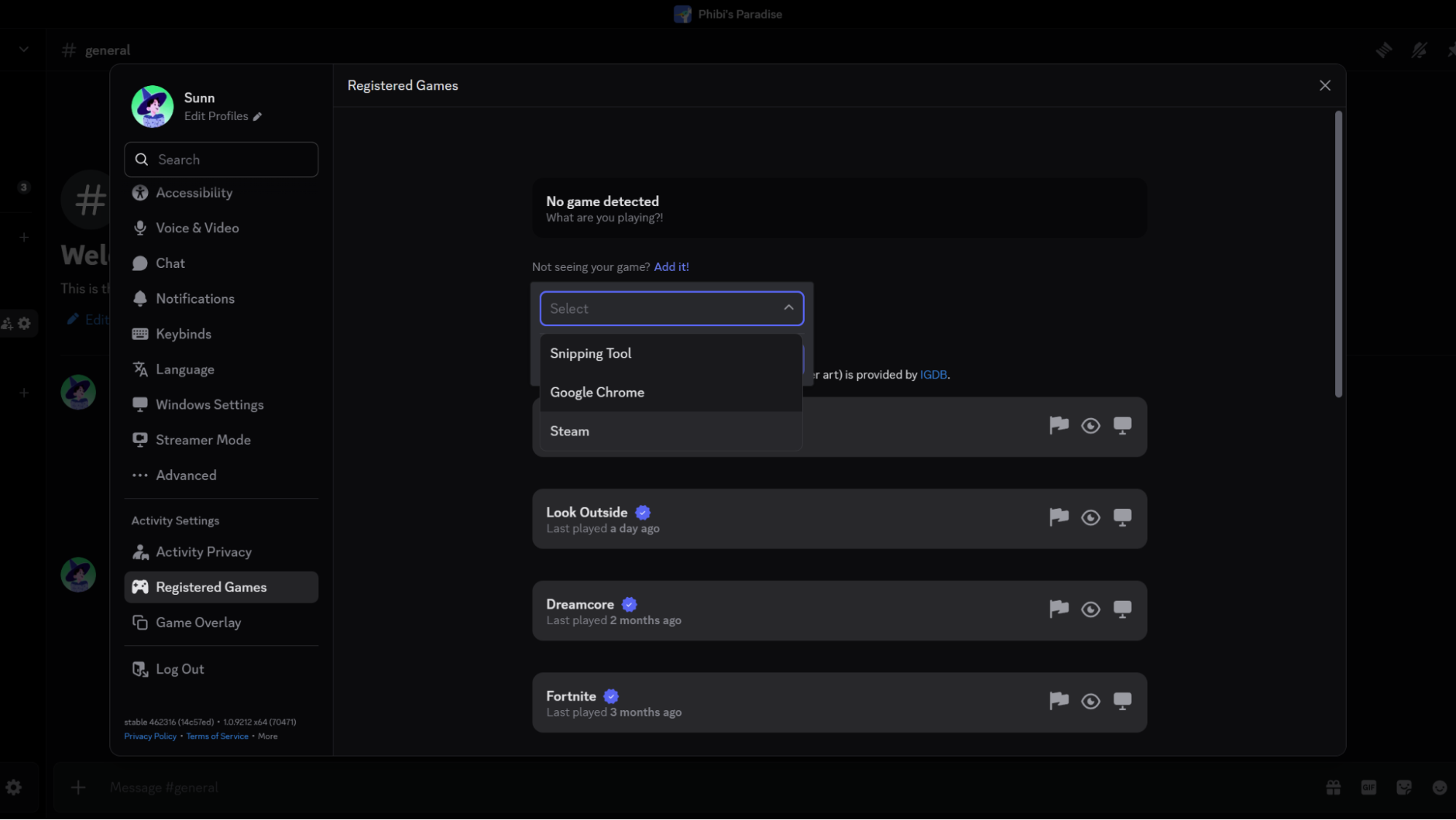
- remove or avoid detecting the game through the registered games area
If a game is being picked up incorrectly or keeps reappearing, remove it from your detected games list and restart Discord. That can help reset what Discord is tracking.
Why Your Game May Still Be Showing
If your activity still appears after turning settings off, check these common causes:
- Discord has not refreshed yet
- a connected account is still sharing status
- the app is showing a custom status instead of game activity
- another session or device has not updated
- you changed the wrong privacy setting
In most cases, signing out and back in, or fully restarting Discord, fixes the delay.
Privacy Tips for Discord Gamers
If you want the most private setup possible:
- turn off Display current activity as a status message
- review all connected accounts
- avoid unnecessary rich presence integrations
- use a custom status only when you want to share something manually
- review server privacy settings from time to time
This gives you more control and makes your Discord profile feel less automated.
FAQ
How do I hide what game I am playing on Discord?
Open User Settings, go to Activity Privacy, and turn off Display current activity as a status message.
Why can people still see my activity?
Discord may still be refreshing, or a connected account may still be sharing status information. Restart the app and review your Connections settings.
Can I hide activity from one server only?
In some cases, yes. Discord offers server-related privacy controls, though the exact options may vary over time.
Is custom status the same as game activity?
No. Custom status is something you type yourself. Game activity is detected automatically by Discord.
Final Thoughts
Not everyone wants Discord to act like a live gaming billboard. If you prefer privacy, it only takes a minute to turn game activity off and clean up your settings.
The best Discord setup is the one that shares only what you want to share.