If you use Discord while gaming, the in-game overlay can be helpful when you want to see who is talking, open chat, or respond without tabbing out. But for many players, it can also feel distracting, block part of the screen, or stop working when they need it most.
This guide explains what Discord Game Overlay does, how to turn it on, how to open it in-game, how to move it, and how to disable it completely if you would rather play without it.
What Is Discord Game Overlay?
Discord Game Overlay is a built-in feature in the Discord desktop app that lets you access parts of Discord while a game is open. Depending on your settings, it can show voice activity, notifications, messages, streams, and other small interface elements on top of your game.
For many players, the main benefit is simple: you do not have to keep alt-tabbing out of your game just to check Discord.
That said, it is not for everyone. Some people prefer a cleaner screen, and some games work better with the overlay turned off.
Who Can Use Discord Overlay?
Discord's overlay is mainly meant for desktop gamers. It works best on Windows systems where Discord can detect and hook into supported games.
It also works best when your game is running in windowed fullscreen or borderless fullscreen. If you use true fullscreen mode, the overlay may not appear at all.
How to Enable Discord Game Overlay
To enable the overlay in Discord:
- Open the Discord desktop app.
- Click the gear icon next to your username to open User Settings.
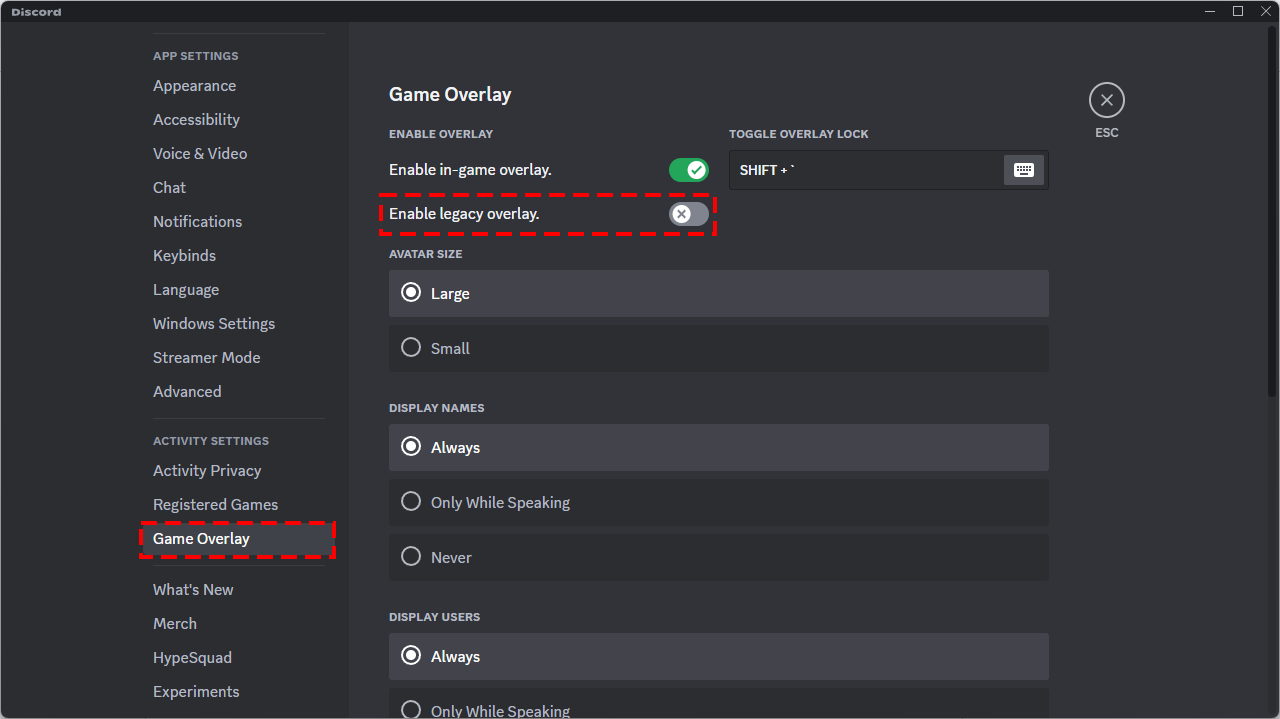
- Go to Overlay.
- Turn on Enable Overlay.
If the main toggle is enabled, Discord can show overlay elements in supported games.
How to Open the Overlay In-Game
Once the overlay is enabled, launch your game and use the overlay keybind. Discord's default keybind is often shown as Shift + `, though users sometimes change it.
If pressing the keybind does nothing:
- Make sure the game is detected by Discord.
- Confirm overlay is enabled globally.
- Check whether the game is running in true fullscreen.
- Make sure another app is not using the same shortcut.
If the overlay opens, you should be able to view or pin certain windows such as voice, messages, or activity widgets depending on your current settings.
How to Move and Customize the Overlay
A lot of people do not actually want to remove the overlay. They just want it out of the way.
Inside Discord's overlay settings, you can customize several display options, including:
- whether users are shown all the time or only while speaking
- whether names are shown
- avatar size
- which windows appear in-game
- whether specific overlay elements stay pinned
This is useful if the overlay is covering your minimap, HUD, subtitles, or health bar.
A good setup for most players is:
- show voice users only while speaking
- use smaller avatars
- hide extra windows you do not need
- avoid pinned text windows unless you actively use them
That gives you the communication benefits without cluttering the screen.
How to Turn Off Discord Overlay for One Game
If you like the overlay in general but hate it in one specific game, turn it off just for that game instead of disabling the entire feature.
The exact menu labels can change over time, but the usual flow is:
- Open Discord.
- Go to your activity or registered games area.
- Find the game you want to change.
- Disable overlay for that game only.
This is the best option if one game has performance issues, display conflicts, or anti-cheat sensitivity while other games work fine.
How to Turn Off Discord Overlay Completely
If you never use it, the simplest fix is to disable it globally.
To turn off Discord overlay completely:
- Open User Settings.
- Go to Overlay.
- Turn off Enable Overlay.
That will stop Discord from trying to place overlay elements over your game windows.
For many players, this is the easiest way to reduce distractions, avoid compatibility issues, and remove one more layer from the screen.
Why Discord Overlay May Not Appear
If Discord overlay is enabled but not showing, the most common causes are:
- the game is running in true fullscreen mode
- the game is not detected properly
- the overlay keybind conflicts with another shortcut
- Discord and the game are running with different permission levels
- another overlay is interfering, such as one from Steam, NVIDIA, AMD, Xbox Game Bar, or MSI Afterburner
If you want the deeper troubleshooting version, continue with our companion guide about fixes that actually help when Discord Game Overlay is not working.
Should You Keep Discord Overlay On?
That depends on how you play.
Keep it on if you:
- regularly play with friends in voice chat
- want to see who is speaking without tabbing out
- need quick access to Discord while gaming
Turn it off if you:
- want the cleanest possible screen
- mainly use Discord on a second monitor
- notice lag, crashes, or display conflicts
- play competitive games where any overlay is distracting
There is no universal best setting. The right choice is the one that fits your setup and the kind of games you play.
Quick Recommendation
If you are unsure what to do, start here:
- casual co-op player: keep overlay on, but simplify it
- competitive player: disable it globally or per game
- player with screen clutter: keep voice only, hide everything else
- player with bugs: use borderless fullscreen first, then test again
FAQ
How do I remove the Discord overlay from a game?
Open Discord, go to User Settings > Overlay, and disable the main overlay toggle. If you only want to remove it from one game, use the per-game settings in your game activity or registered games area.
Why is Discord overlay not showing in my game?
The most common reason is that the game is running in true fullscreen. Try switching to borderless fullscreen or windowed fullscreen and test again.
Can I move the Discord overlay?
Yes. Discord allows you to customize and reposition certain overlay elements, including voice display and pinned windows, so they block less of your screen.
Does Discord overlay affect performance?
It can in some setups. If you notice lag, crashes, stutter, or conflicts with other overlays, disable it for that game first and compare performance.
Final Thoughts
Discord Game Overlay can be useful when it is set up well, but it should never make gaming more annoying. If it helps you stay connected, keep it and simplify it. If it gets in the way, turn it off without overthinking it.
A clean game screen is sometimes the best quality-of-life upgrade you can make.