
Discord makes it easy to stream games to friends, but a smooth stream depends on more than clicking one button. If your game stutters, your viewers hear extra audio, or the stream looks blurry, the problem is usually in your setup rather than the feature itself.
This guide shows you how to stream a game on Discord, how to choose the right source, and how to reduce lag and audio issues before they ruin the experience.
What You Need Before You Start
Before you stream, make sure you have:
- the Discord desktop app installed
- a stable internet connection
- the game already running if possible
- the correct audio output selected in your system and Discord
- enough CPU and GPU headroom for gaming and streaming at the same time
Streaming works best when you keep your setup simple.
How to Stream a Game on Discord Desktop
To start streaming a game on Discord:
- Open the game you want to share.
- Join a voice channel or direct call.
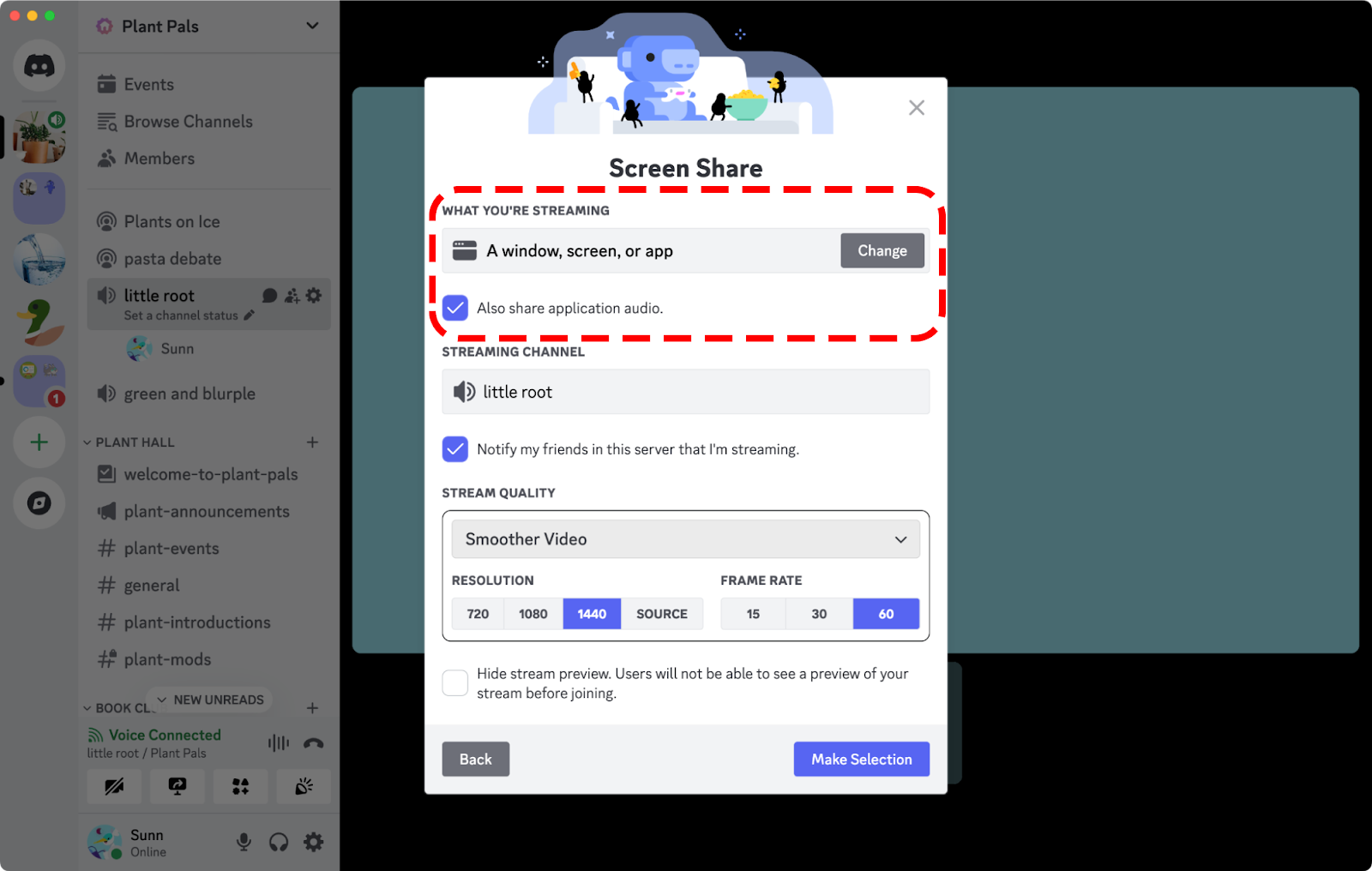
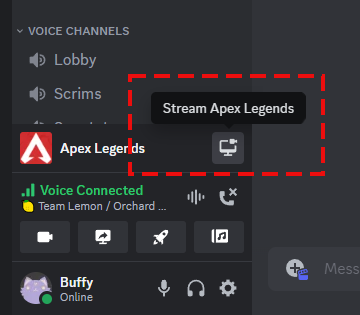
- In Discord, click the Share Your Screen or Go Live option.
- Choose the game window or app you want to stream.
- Select stream quality settings if available.
- Start streaming.
If Discord detects your game properly, it may show the game directly as a source. If not, you can still share the application window manually.
Should You Share the Game Window or the Entire Screen?
In most cases, sharing the game window is the better option.
Choose the game window if you want:
- cleaner audio handling
- fewer distractions
- better privacy
- less risk of showing notifications or desktop content
Choose the full screen only if:
- the game does not appear as a selectable app
- you need to switch between multiple windows
- you are presenting something beyond the game itself
For most players, app sharing is the safer and cleaner choice.
How to Stream Game Audio Correctly
If you want viewers to hear the game itself, make sure you share the game or app window rather than only your monitor. Discord handles application audio better this way.
Also check:
- your Windows output device
- Discord voice and video settings
- whether your headset software is creating duplicate outputs
- whether virtual audio devices are installed
A lot of Discord audio problems are really routing problems.
How to Reduce Lag While Streaming
If your game lags when streaming, try these fixes:
- lower stream resolution
- lower frame rate
- close browsers and heavy background apps
- disable unnecessary overlays
- use Ethernet instead of Wi-Fi if possible
- stream the game window instead of the full screen
- lower in-game graphics settings slightly
The goal is not perfect quality. The goal is stable quality.
A slightly lower-resolution stream that runs smoothly is much better than a higher-quality stream that stutters every few seconds.
Why Friends Can Hear Extra Game Audio
If your friends can hear menu sounds, desktop sounds, or doubled audio, one of these is usually happening:
- you are sharing the full screen instead of the game window
- your mic is picking up speaker output
- your headset output and stream output are duplicated
- noise suppression is not enough for your room setup
- a virtual mixer is sending more audio than expected
The easiest fixes are:
- use headphones
- share the game app, not the whole screen
- check your input and output devices in Discord
- mute unused virtual audio devices
Can You Stream from PS5 or Xbox?
Console streaming through Discord is more limited than desktop game streaming.
For PS5 or Xbox, users often rely on:
- Discord voice chat while playing on console
- remote play workflows
- capture card setups
- console-specific broadcast tools combined with Discord chat
If your goal is simple voice communication, Discord works well. If your goal is full, high-quality console gameplay streaming into Discord, the setup is usually more complicated than on PC.
Best Stream Settings for Different Games
A few simple rules help:
- fast competitive games: favor stability over high resolution
- story games: prioritize cleaner image quality
- co-op games with voice chat: keep CPU overhead low
- low-end PCs: reduce both stream quality and in-game graphics
The right settings depend on your hardware, but smooth and understandable should always come before maxed out.
FAQ
How do I stream a game on Discord?
Join a voice channel or call, click Share Your Screen or Go Live, choose the game window, then start the stream.
Why does my game lag when I stream on Discord?
Usually because your PC is handling both gaming and encoding at once. Lower stream quality and close background apps first.
Why can my friends hear my game audio twice?
This often happens because of duplicate audio routing, speaker bleed into the microphone, or sharing the wrong source.
Is it better to stream an app or the full screen?
For most users, streaming the app window is better because it handles privacy and audio more cleanly.
Final Thoughts
Discord streaming works best when you keep the setup focused: one game, one clean audio path, and realistic quality settings. If something feels off, do not start with complicated fixes. Start with the basics and simplify your setup first.
That alone solves most Discord streaming problems.